Multicolor divider line
FDX LITE

FDX LITE

FDX Lite je ulazni zaslon u ćeliji s HD rezolucijom, prikladan za osnovne popravke unutar nižeg cjenovnog segmenta. Ovi zasloni također se rigorozno testiraju kako bi se osigurao stabilan rad i pouzdane performanse, što FDX Lite čini praktičnim i kontroliranim izborom za cjenovno orijentirane primjene unutar incell segmenta.
Features FDX LITE
Pixel resolution High Definition (HD)
Refresh rate Fast response
Includes Camera holder, earpiece mesh and proximity bracket
Temperature Low and controlled
360° Polarized Supported
Oil resistant coating Supported
Anti-glare Supported
Front Glass Anti-dust and fingerprint oil
Inspection Tested before shipment
Warranty Covered
Service Pack
Service Pack dijelovi su originalni i proizvedeni u certificiranom okruženju od strane originalnog proizvođača uređaja.
Pulled
Pulled dijelovi su 100% autentični i potječu iz originalnih rabljenih uređaja. Prolaze stroga testiranja i inspekcije kako bi se osigurala najviša kvaliteta.
Refurbished
Refurbished dijelovi uklonjeni su s originalnog rabljenog telefona, ali je prednje staklo zamijenjeno staklom ekvivalentnim originalu, dok su svi ostali materijali ostali autentični.
OEM-Equivalent
OEM-Equivalent dijelovi su profesionalno sastavljeni od strane treće strane s komponentama i materijalima jednakovrijednima onima originalnog proizvođača. Testirani su na osnovnu funkcionalnost i nude pouzdanu alternativu za povoljan popravak.
FDX ULTRA
FDX Ultra je Soft OLED LTPS zaslon s jarkim, živopisnim bojama i glatkim, preciznim dodirom. Zahvaljujući fleksibilnom COP dizajnu, ekran je tanak, lagan i dodatno otporan na lomljenje. Svaka serija se rigorozno testira na boju, stabilnost i performanse, tako da profesionalci mogu računati na pouzdanu i dosljednu kvalitetu.
FDX PRO
FDX Pro je tvrdi OLED zaslon s oštrom kvalitetom slike, živim bojama i brzim, preciznim dodirom. Zahvaljujući svom COF dizajnu, pruža pouzdane performanse u svakodnevnoj upotrebi. Svaka serija testira se na stabilnost i ujednačenost, kako bi tehničari mogli računati na dosljednu kvalitetu po konkurentnoj cijeni.
FDX ELITE
FDX Elite je vrhunski zaslon u ćeliji, razvijen u suradnji s proizvođačem za optimalnu kvalitetu. Neprestano ga poboljšavamo putem povratnih informacija kupaca i našeg stručnog znanja. Ovaj zaslon je naša najskuplja opcija, ali s pripadajućom kvalitetom i uslugom za bezbrižno korisničko iskustvo.
FDX PRIME
FDX Prime je pouzdano standardno rješenje unutar ćelije, nabavljeno izravno od pažljivo odabranih proizvođača. Zasloni zadovoljavaju visoke standarde kvalitete unutar ćelije i rigorozno se testiraju kako bi se osigurala dosljedna izvedba, pouzdanost i dugoročna dostupnost. FDX Prime prikladan je za svakodnevnu profesionalnu upotrebu unutar incell segmenta.
Tips & Tricks

What to do with Vanished Fingerprint on your Google Pixel after Screen Replacement?

12-03-2024 Vrijeme čitanja: 2 min

What to do with Vanished Fingerprint on your Google Pixel after Screen Replacement?

A common problem that occurs with Google Pixel smartphones is the failure of the fingerprint scanner after replacing the screen. In this blog, we share effective solutions to address this problem so that your customer can continue to use their phone effortlessly.


Start by Checking the Flex Cable

Make sure the fingerprint scanner flex cable is correctly connected to the motherboard and that it is not damaged. This is important to check because it could be causing the problem. If this is not the case, you have an idea where the possible problem could lie. If the cable does connect properly to the motherboard, it is likely that the fingerprint scanner needs to be recalibrated. Below are the steps to do this:


The Step-by-Step Calibration of the Fingerprint Scanner:

(Note: These steps only apply to the Google Pixel 6 and newer models.)


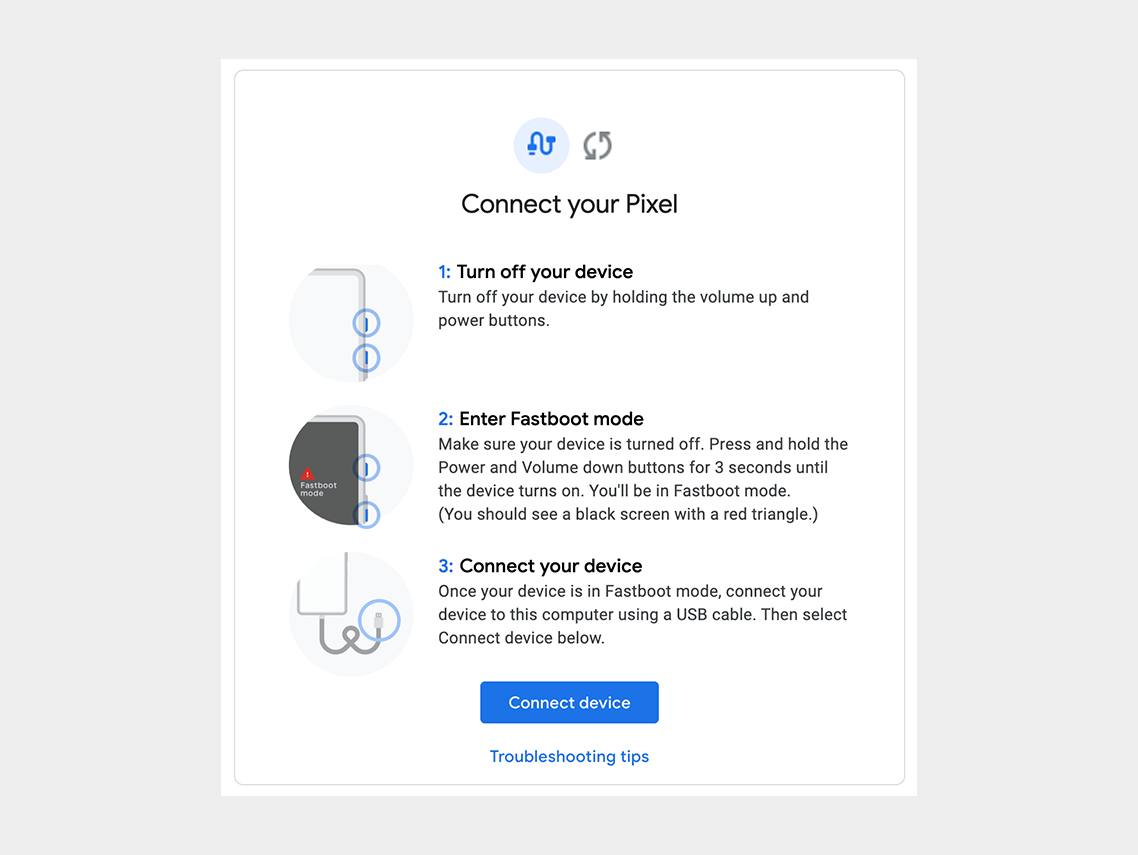
Step 1: Turn off the cell phone.

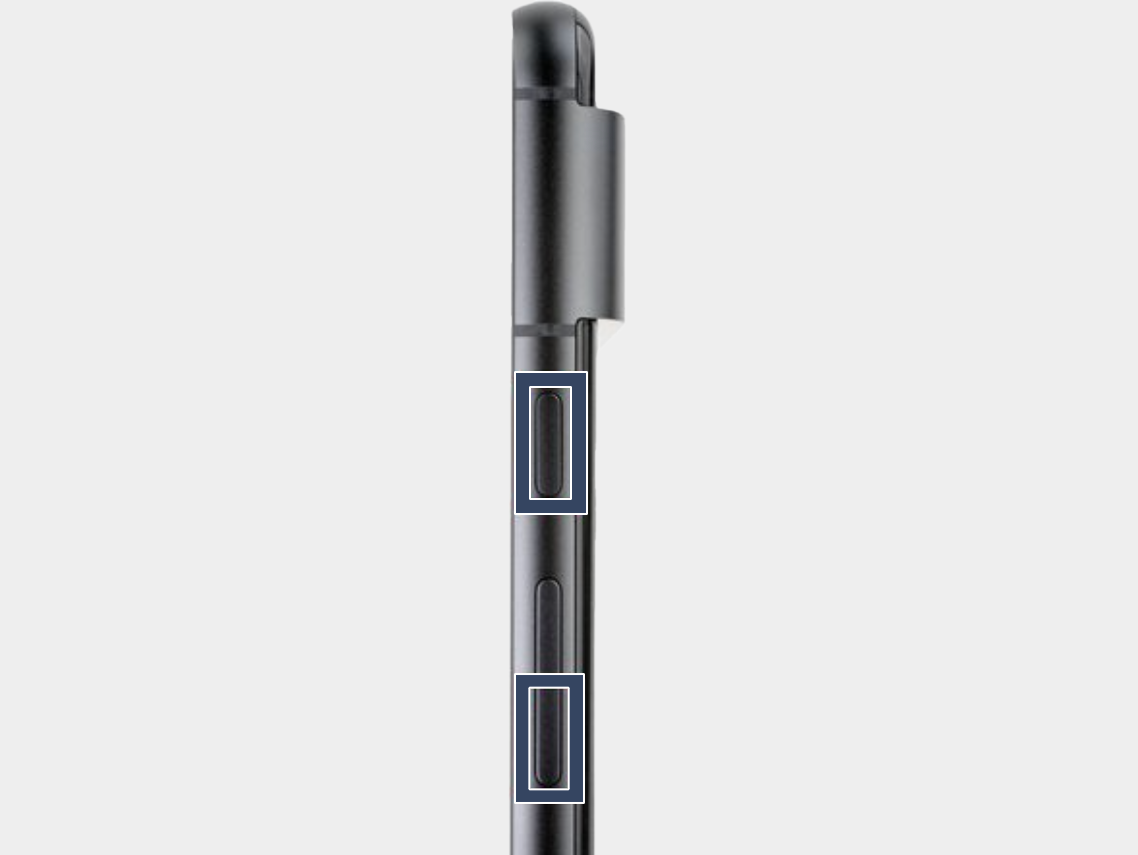
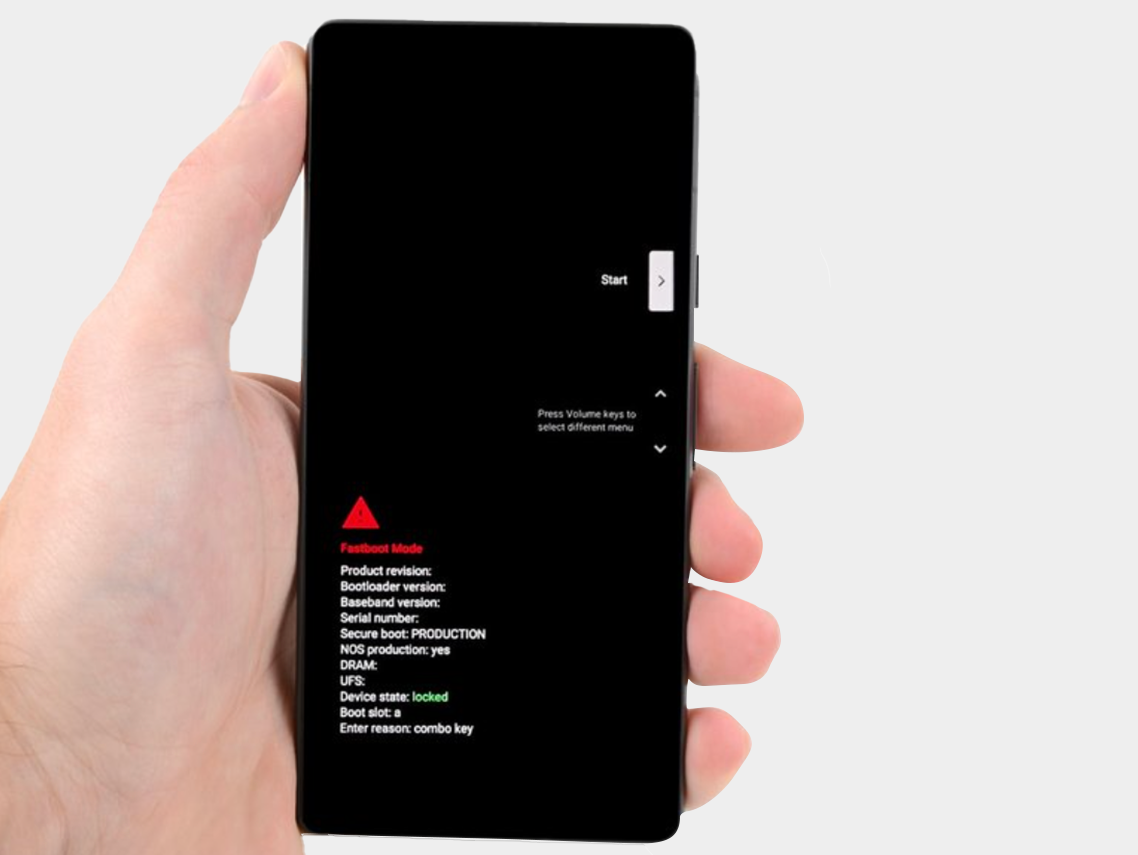
Step 2: Press the power button and volume down button for three seconds to enter the quick boot mode.
-


Step 3: Connect the phone to the computer.

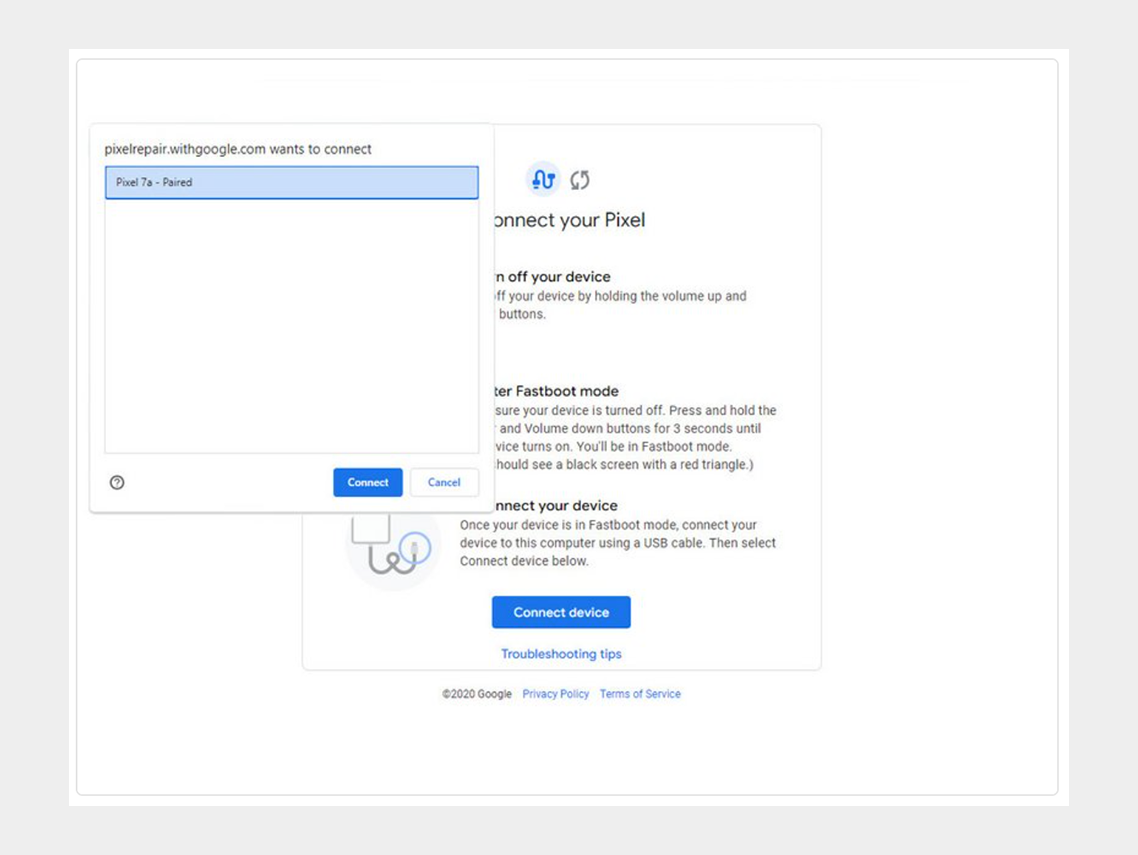
Step 4: Go to the calibration software and click on "Connect Device". Select the appropriate device.
-


If the device is not recognized, check the following:


  • Make sure Chrome has access to use USB devices. Go to Settings > Privacy and security > Site settings > Permissions > Additional permissions > USB devices.
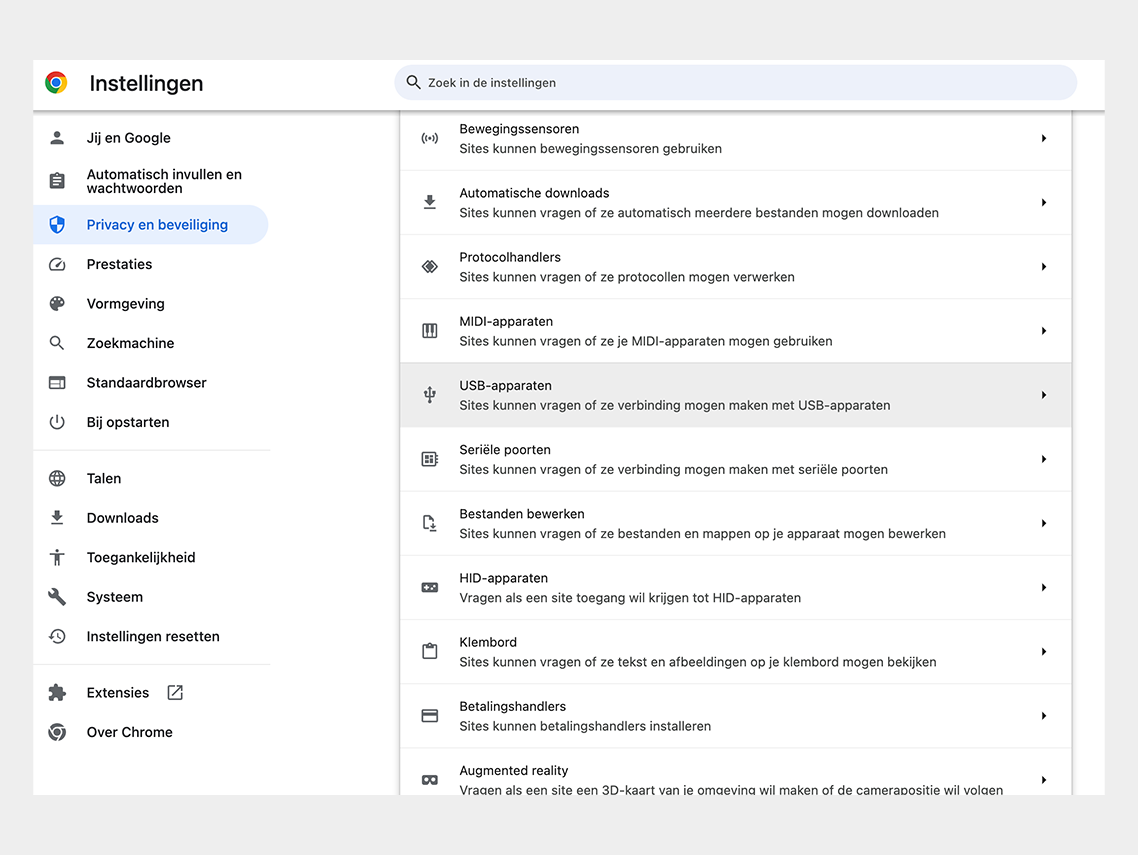

Google Chrome permission


  • Disconnect and reconnect the USB cable. Then try to connect again.
  • Try a different USB cable.
  • For Windows users: Make sure you have downloaded and installed the Google USB driver. Here is the link for the driver.  Follow the steps below:
  • 1. Connect the Android device to your computer's USB port.
  • 2. Open Computer Manager from Windows Explorer.
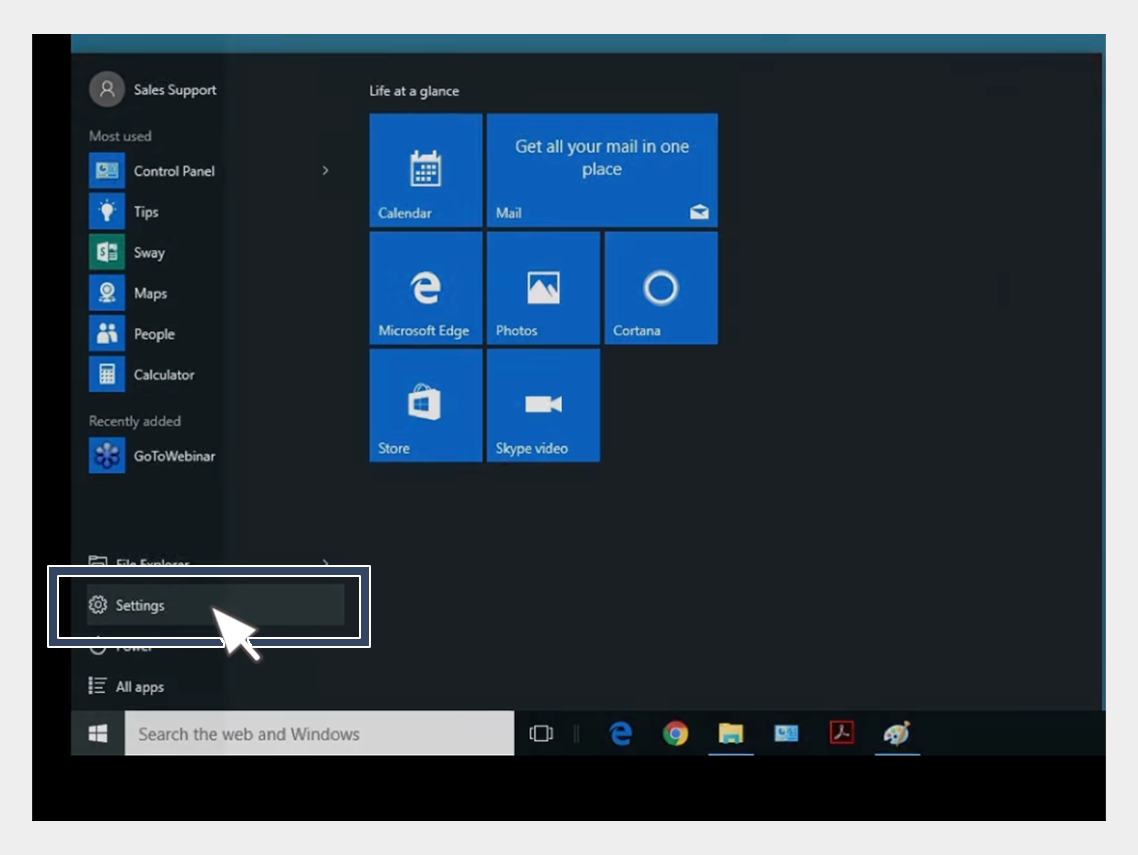

USB-driver installation


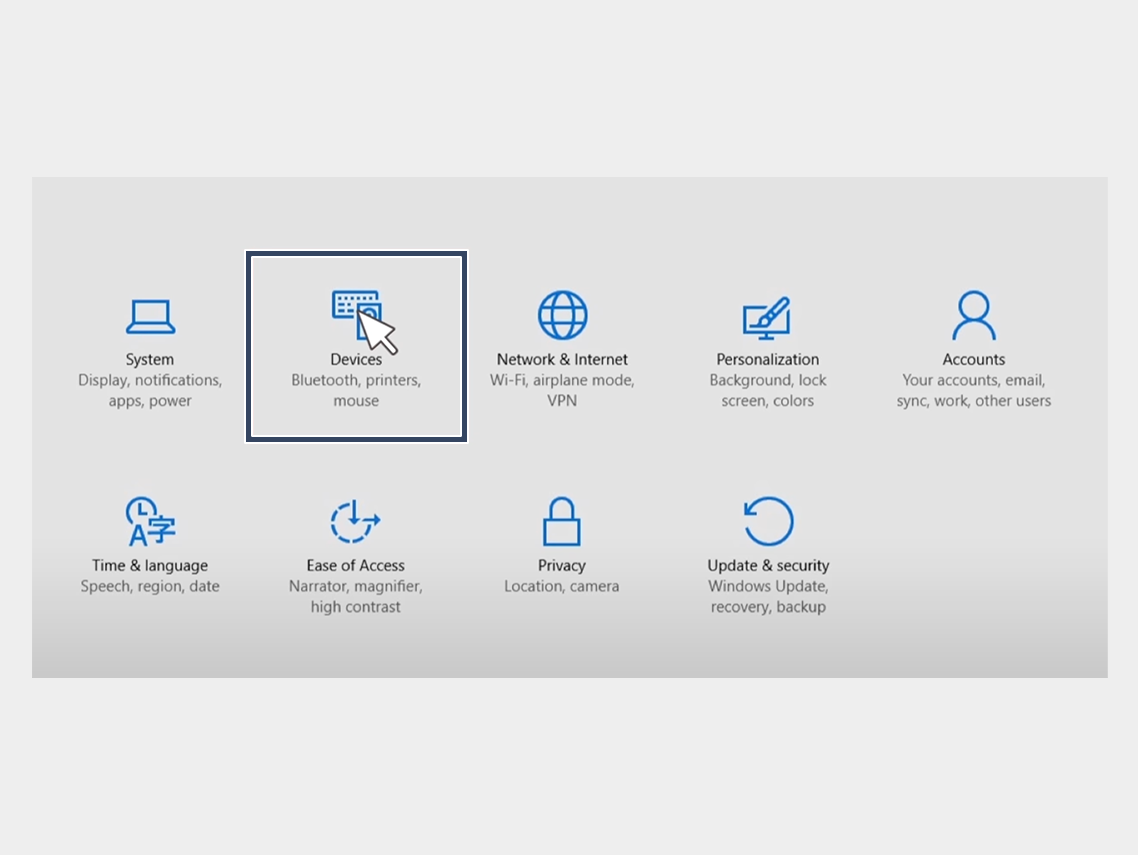
3. In the left pane of Computer Management, select Device Manager.

USB-driver installation


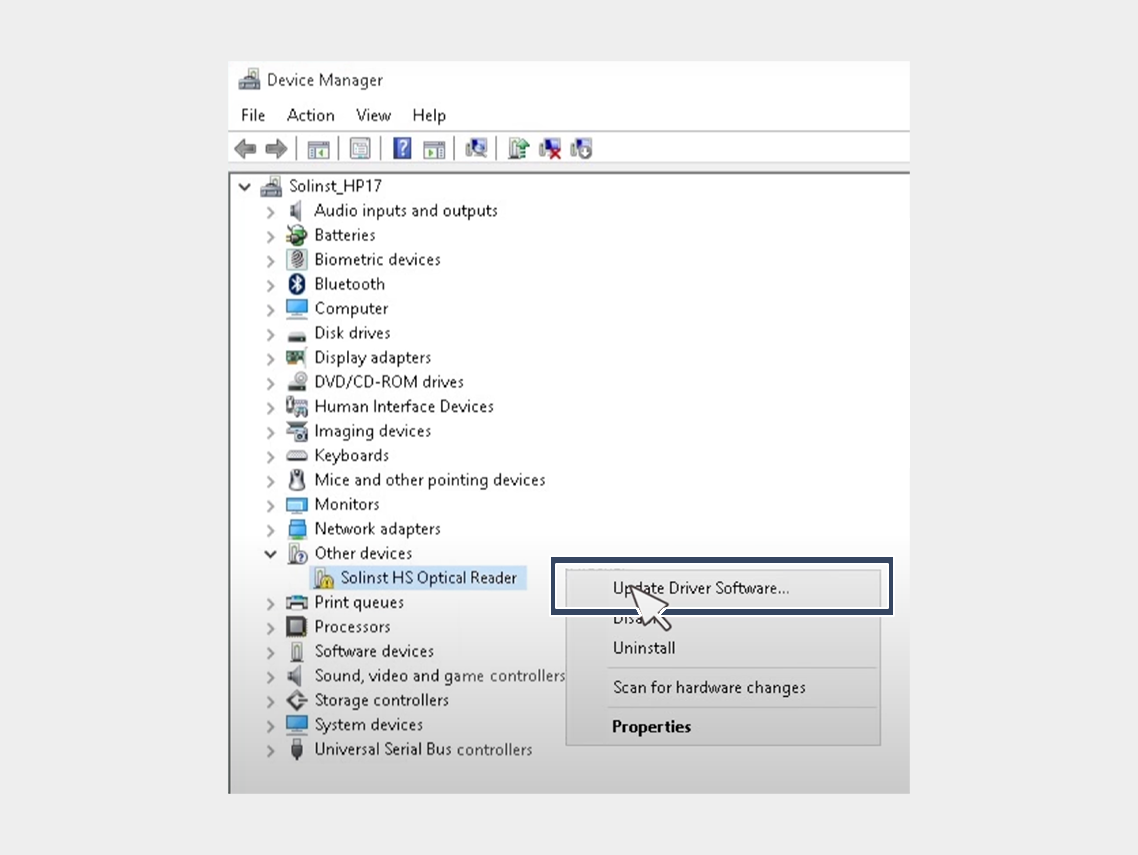
4. In the right pane of Device Manager, find and expand Portable Devices or Other Devices, depending on what you see.


5. Right-click on the name of the device you connected, then select Update Driver.

USB-driver installation


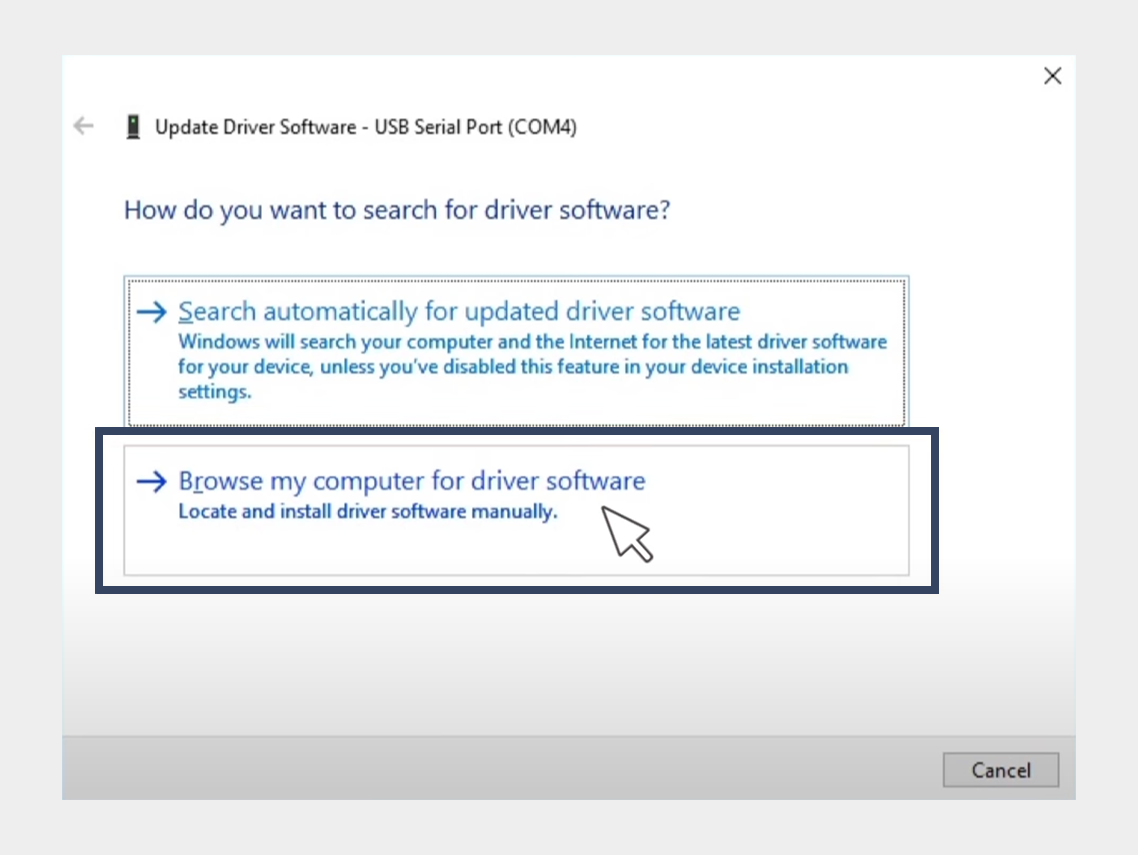
6. In the Hardware Update Wizard, choose Browse for driver software on my computer and click Next.

USB-driver installation


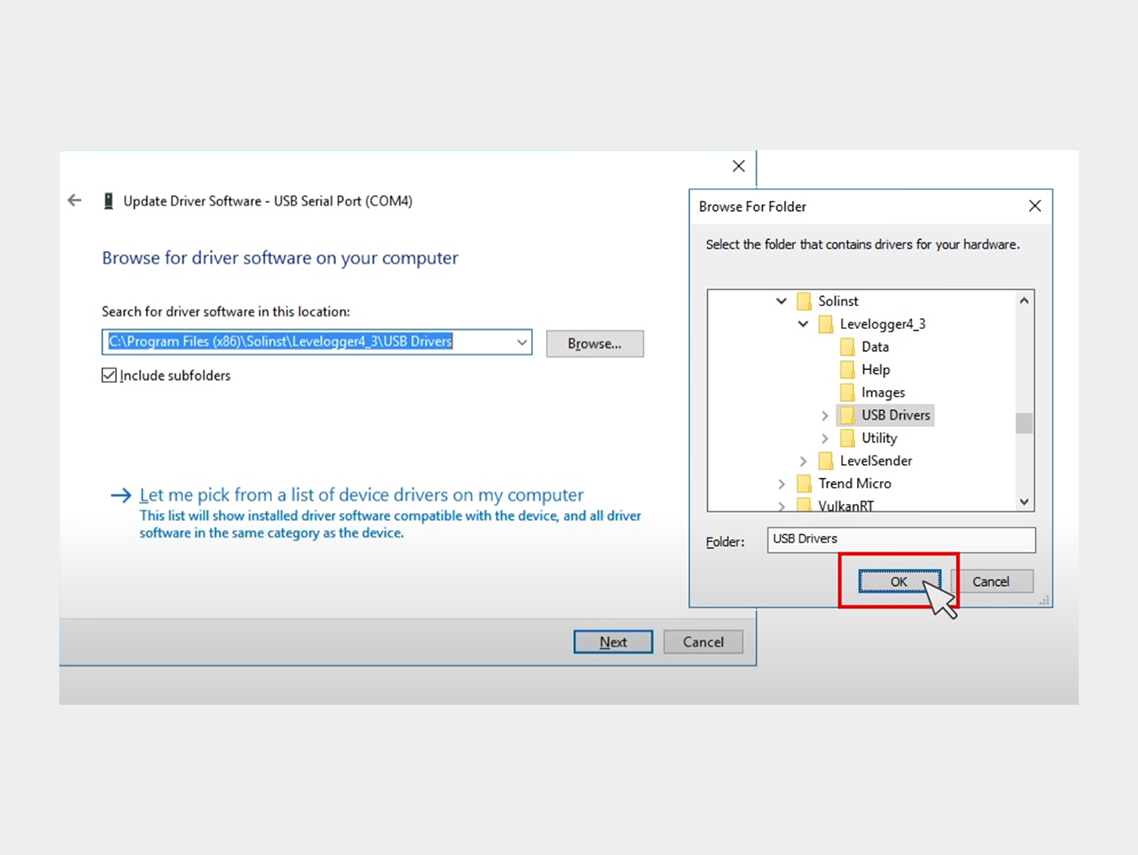
7. Click Browse, then locate the folder containing the USB driver. For example, the Google USB driver is located in android_sdk driver.

USB-driver installation


8. Click Next to install the driver.


Step 5: Click on "Install Software."
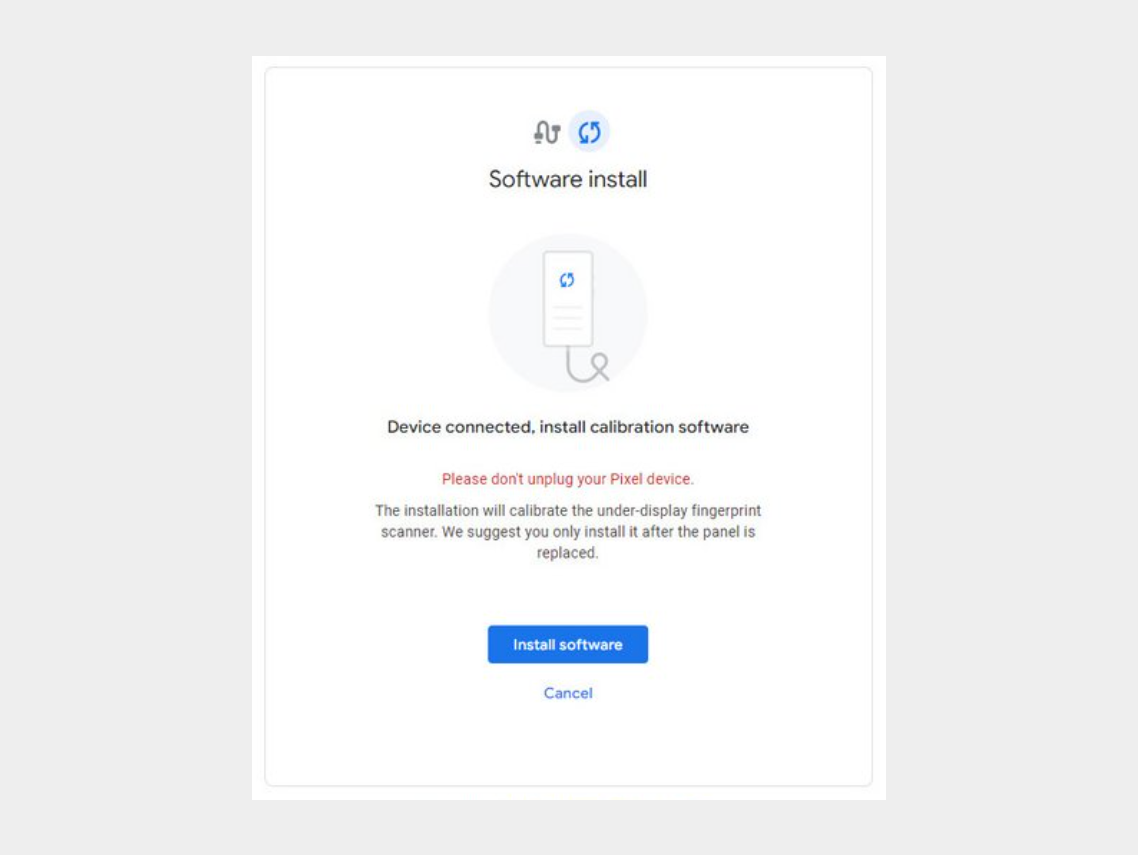


Step 6: Wait for the software to download.
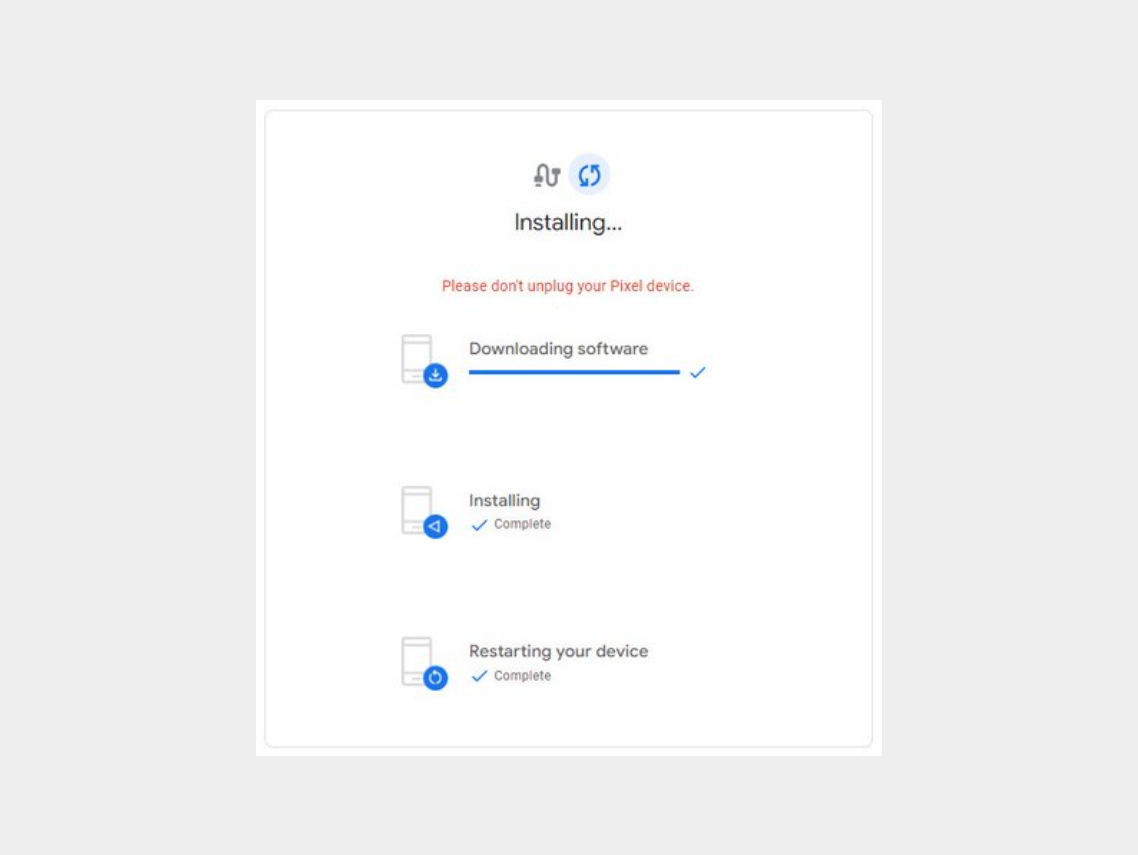

-


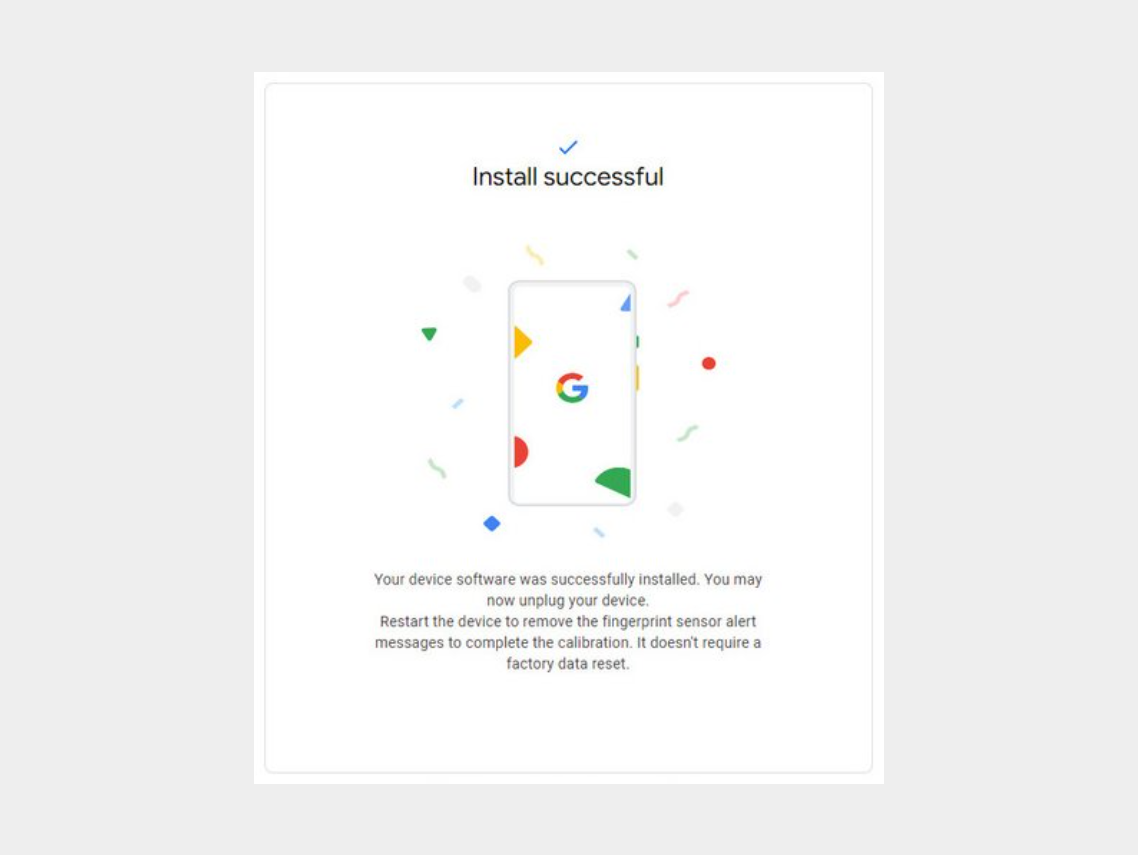
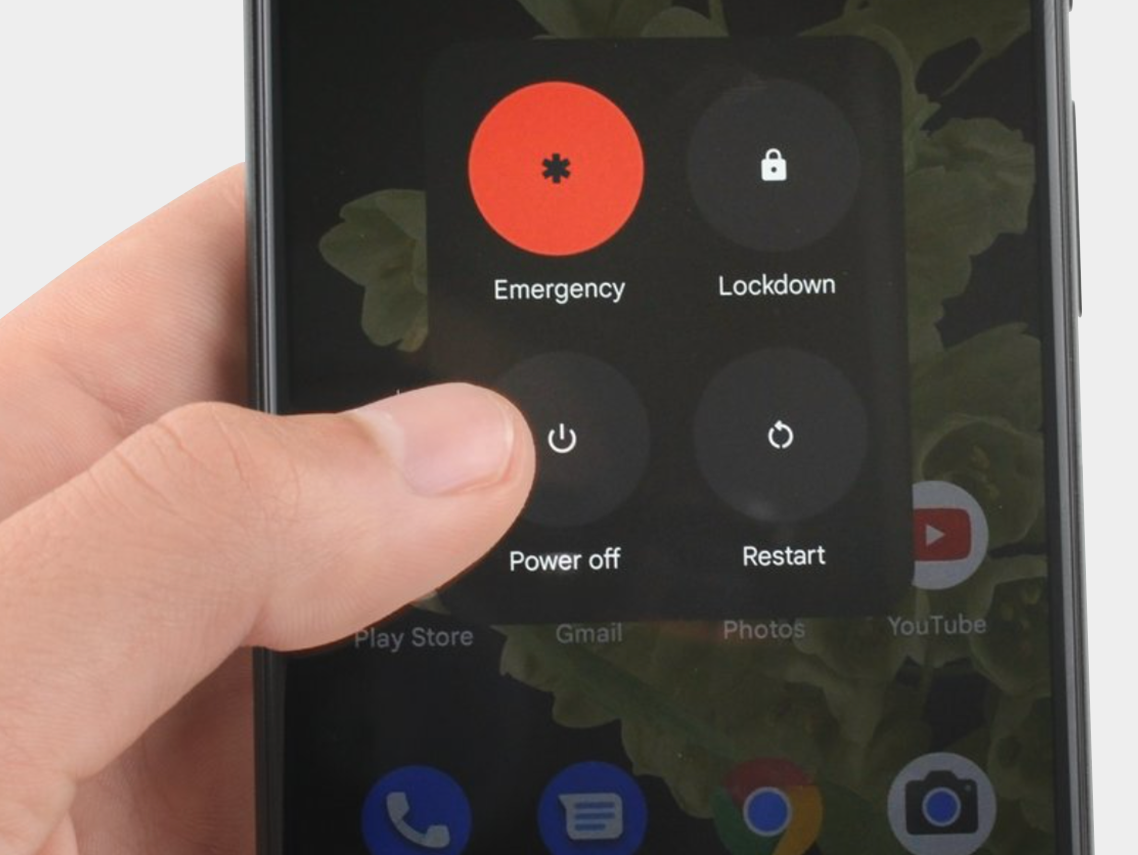
Step 7: Disconnect the phone from the computer and reboot it.


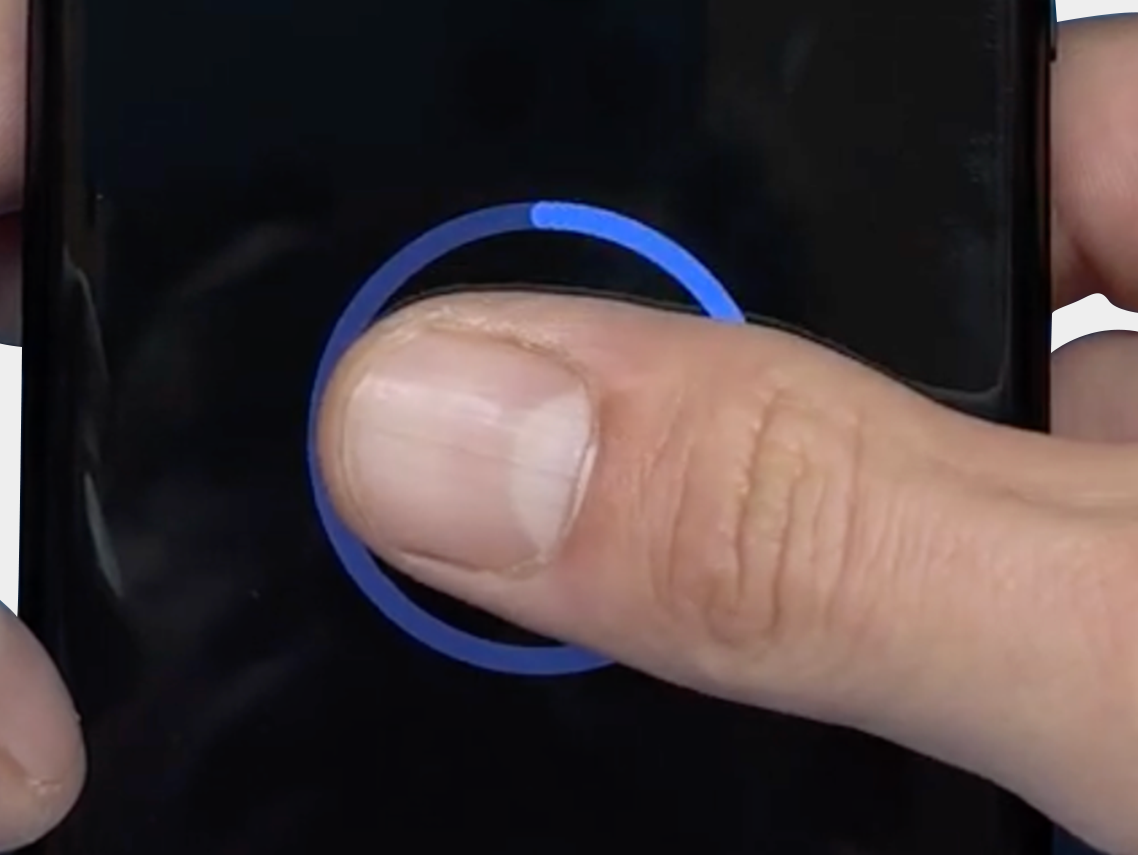
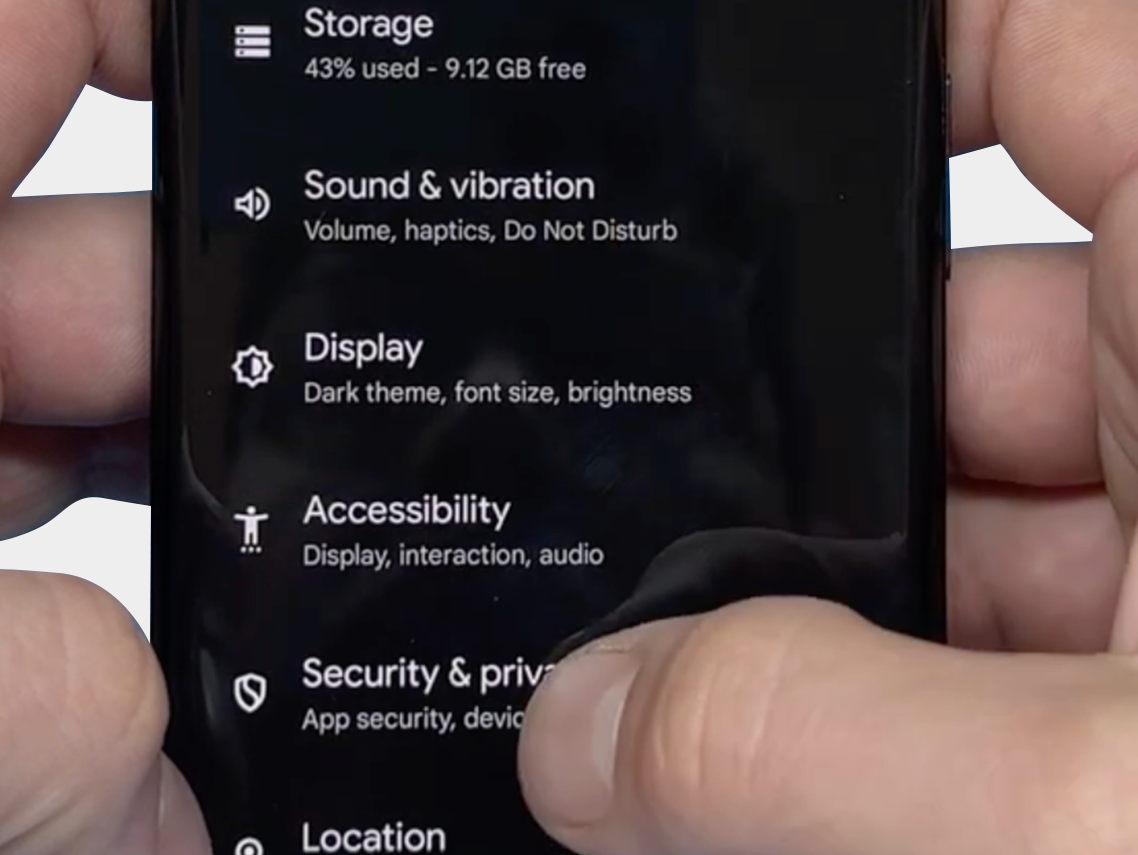
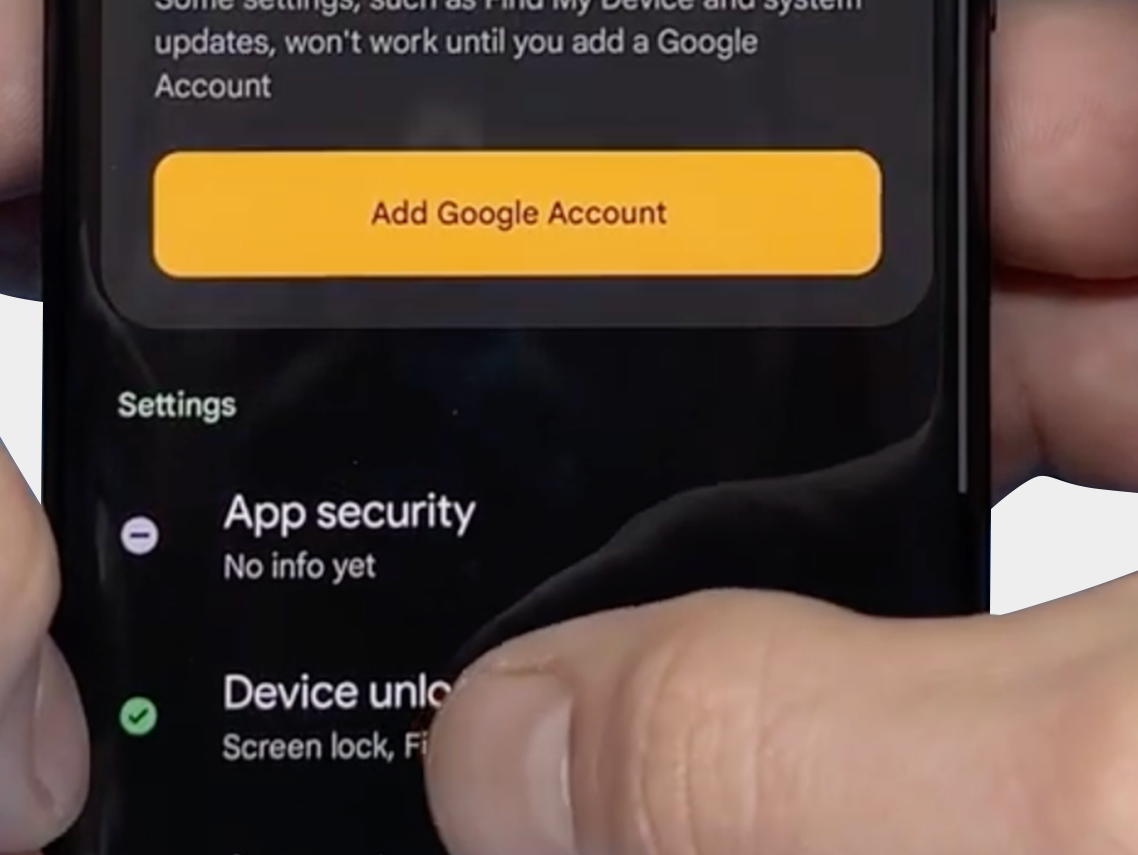
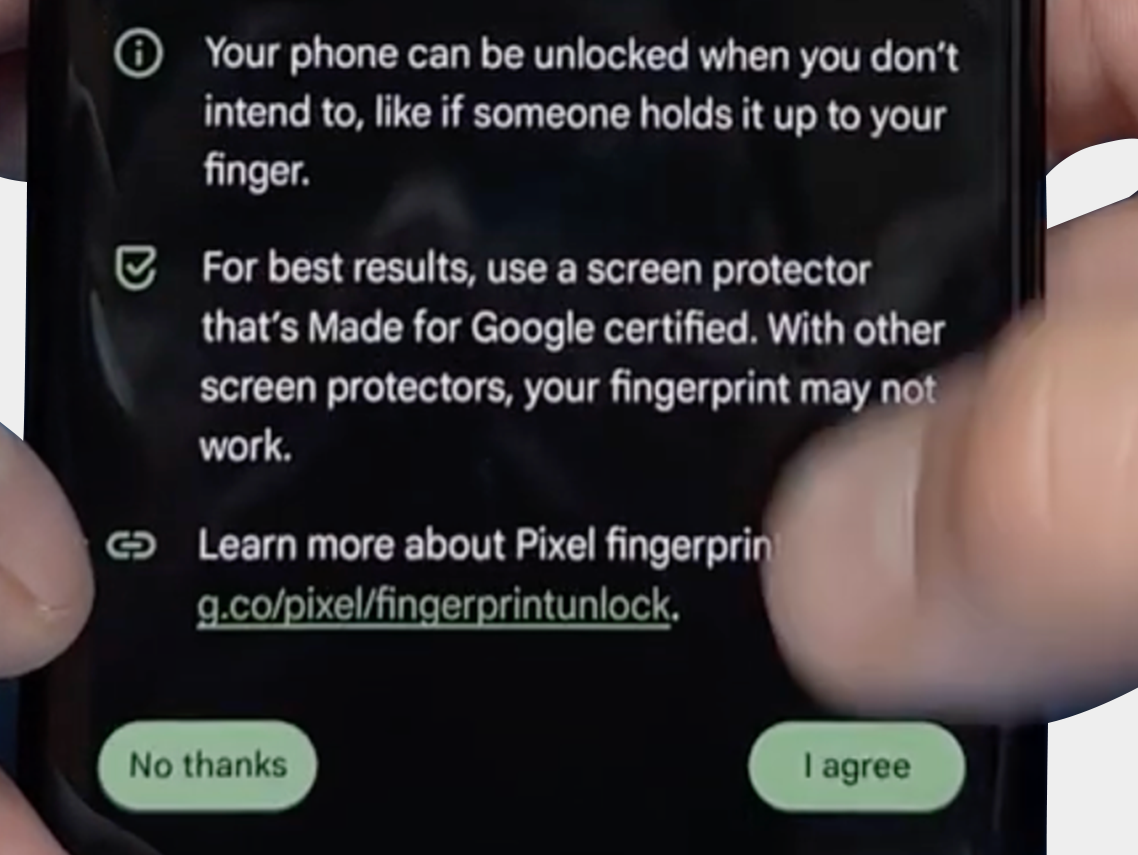
The final step: Verify that you can reset the fingerprint and that it now works via: "Security & Privacy" -> "Unlock Device" -> "FingerPrint Unlock" -> "Agree Terms"
-
-
-


We hope the above tips and information have helped resolve the problem. However, should you still need assistance or have any questions, please do not hesitate to contact us. Our team is ready to further support you.

Checkmark Naručite prije 19:30, šaljemo isti dan
Checkmark Vrhunska kvaliteta
Checkmark Više od 15.000 proizvoda, direktno sa zaliha